
How to Use AI Bikini Generator for Swimwear Photos
Start with a written description or a photo of a swimwear garment. Choose a frame, generate your image, and save the result to your device.
Quick Start
Step 1: Choose your input
Use Create from text if you are planning a new swimsuit photo. For an existing garment photo, use Edit product photo.
Step 2: Write your direction
Describe the swimsuit, subject, and setting for a new image. For an edit, upload the garment photo and say what should change.
Step 3: Choose an aspect ratio
Select 1:1 for square, 4:5 for portrait, or 16:9 for landscape. Think about what must fit in the frame.
Step 4: Generate the image
Read your description once, then select Generate image. Open the result when it appears.
Step 5: Download and save the image
Select Download on the result and save the file where you keep the rest of your project.
Choose Your Starting Workflow
Create from text
Use a written brief to make a new image of a fictional adult model. Start here when you want to decide how a swimsuit, location, and camera angle could work together.
Edit a swimwear product photo
Start with a source photo you have permission to edit. Pick a garment shot without a person, then write which part of the setting or lighting you want to change.
Prepare Your Inputs
Describe the garment and the shot
Begin with a cut, one fabric detail, and a color. Then say where the subject is and what the camera should include. If the location has strong shadows, name which part of the frame should receive light.
Use a clear photo for a product edit
Choose a source photo where both pieces and the details that matter are fully visible. In the edit instruction, name the surface or lighting you want to change and specify which parts of the garment should stay recognizable.
Configure the Image
Match the aspect ratio to the crop
Use 1:1 for a balanced product flat lay, 4:5 for a vertical portrait, or 16:9 for a wide shot. Place key details where you want them within that shape.
Specify the background in your prompt
Describe what you want behind the swimsuit. A plain studio wall draws attention to the fabric. A shallow pool or shoreline gives the shot more context.
Check the result at the size you need
The generator uses preset model and quality settings. Check fine textures and edges at the size you plan to use, especially when the image will appear as a large cover.
Generate the Image
Finish the input
Check that the description names the garment and the one detail most important to the image. For edits, make sure the product photo is attached.
Submit the image
Select Generate image once your settings are in place. Leave the page open while the request runs.
Review the output
When the image appears, check the crop, direction of light, and swimsuit details before saving.
Download and Save
Select Download on the finished image. Give the file a name that identifies the shot or edit, and save the written direction alongside it if you want to recreate the setup later.
Continue or Edit
Explore another take on the result
For a new image, keep the original prompt and change one thing, such as the camera distance. Save the earlier result alongside the new one to compare the two frames.
Start another edit from the original
Return to the original garment photo when you want to test a different background or lighting direction. Each edit then begins with the same visible garment details.
Prompt Examples
Plan a swimwear portrait at a cove
Starting material: A written shoot brief with a bikini color and a coastal setting.
Prompt:
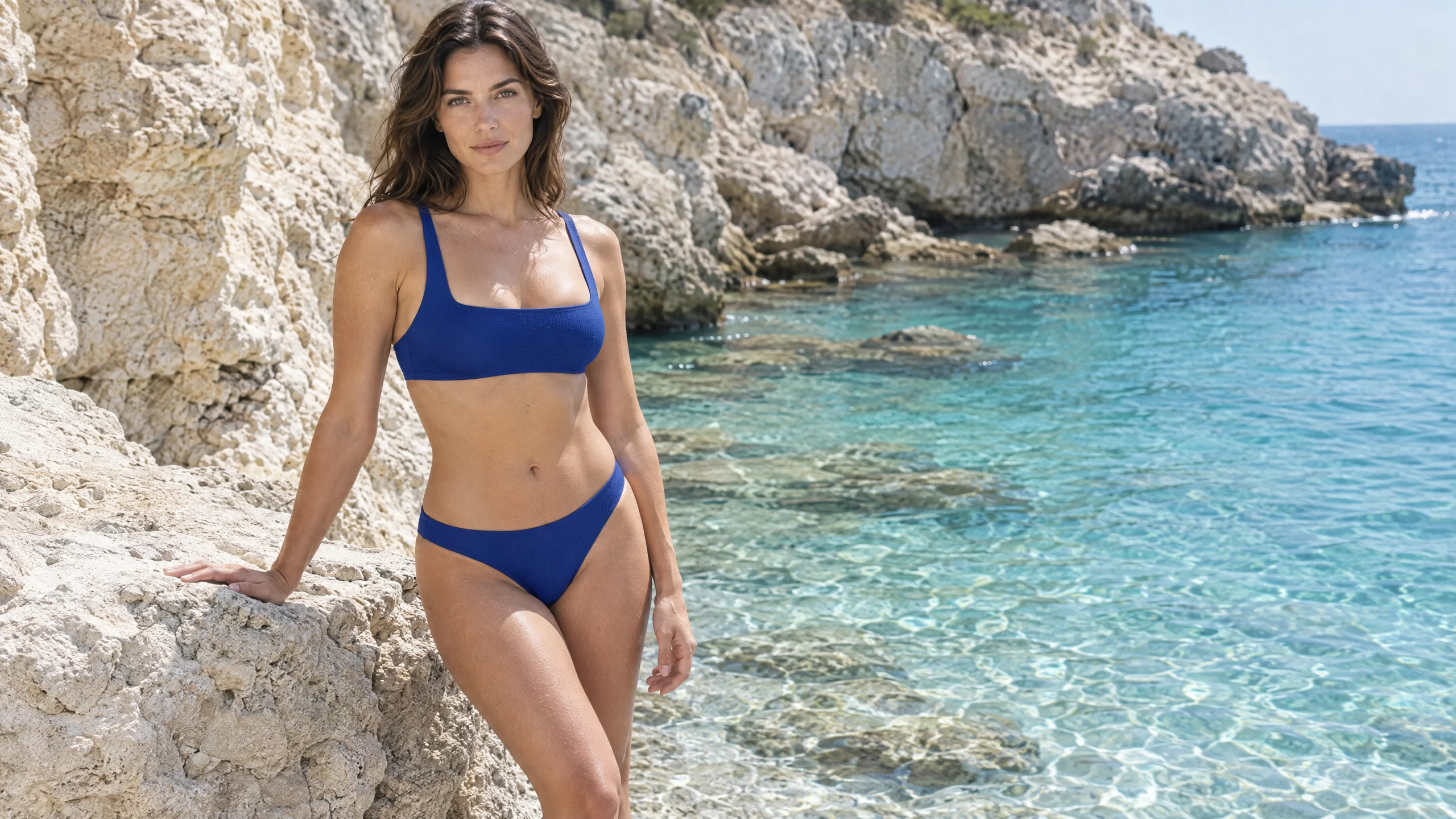
Wide editorial fashion photograph at a pale limestone cove, featuring a fictional 32-year-old woman wearing an opaque deep cobalt bikini with a clean square neckline and mid-rise bottoms. She stands at ease by a rock ledge in a three-quarter pose, her shoulders turned softly toward the camera, with a calm, direct gaze. Frame from her head to her knees at eye level with a 50 mm lens. Pale stone and clear turquoise water fill the open side of the frame. Late-morning sunlight, fine fabric texture, soft reflected fill, and a subtle film grain.
Compose a landscape for a poolside editorial
Starting material: A written layout note that leaves room at the left for a title.
Prompt:
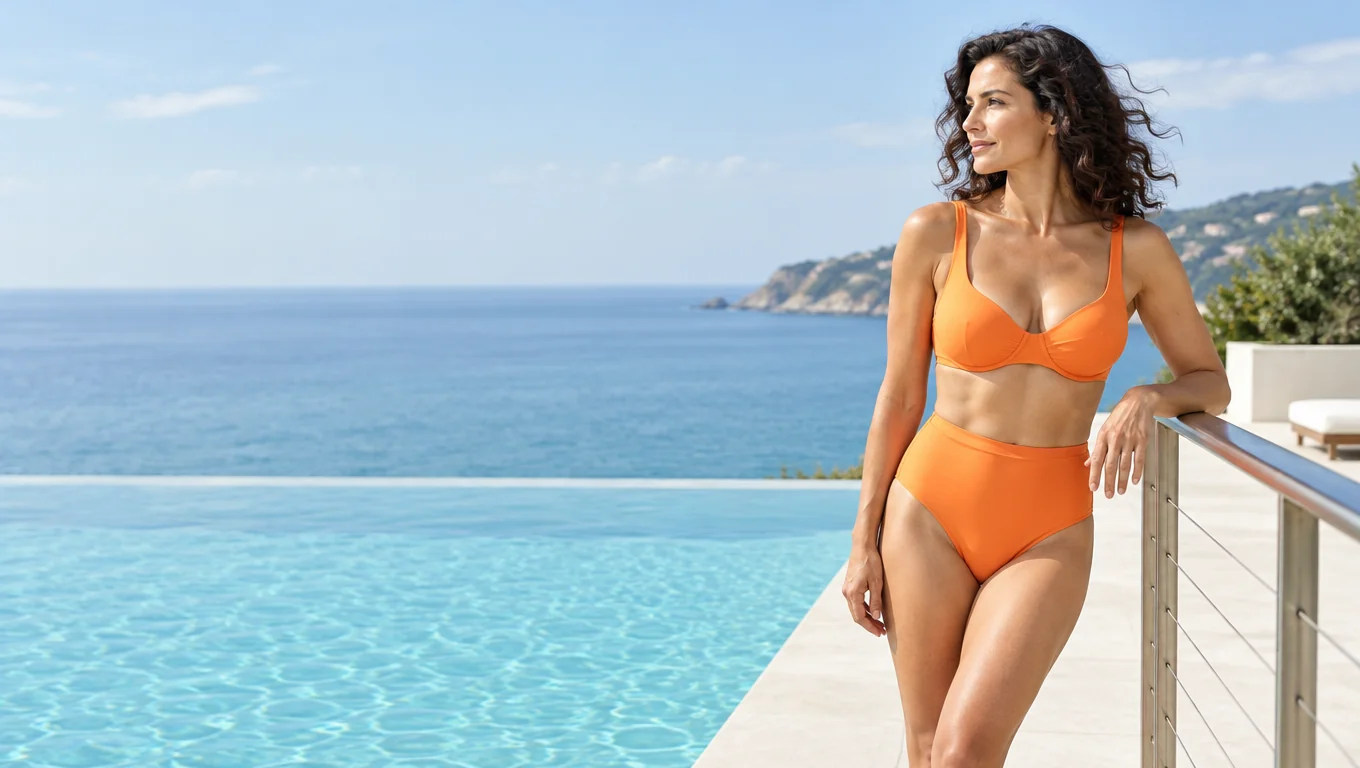
Horizontal coastal resort fashion editorial in clean bright daylight. A fictional 34-year-old woman in an opaque papaya-orange high-waisted bikini stands on the right side of an ivory pool deck, leaning one forearm lightly on a brushed metal railing and looking away across the water. Show her from head to knees, with an easy three-quarter turn and softly windblown dark curls. A 35 mm lens at chest height places the straight pool edge in the lower third. Calm pale aqua water occupies the left half, with enough quiet space for a headline to be added later. Keep the frame free of text.
Light a swimwear portrait in open shade
Starting material: A written scene with one garment, pale walls, and indirect daylight.
Prompt:
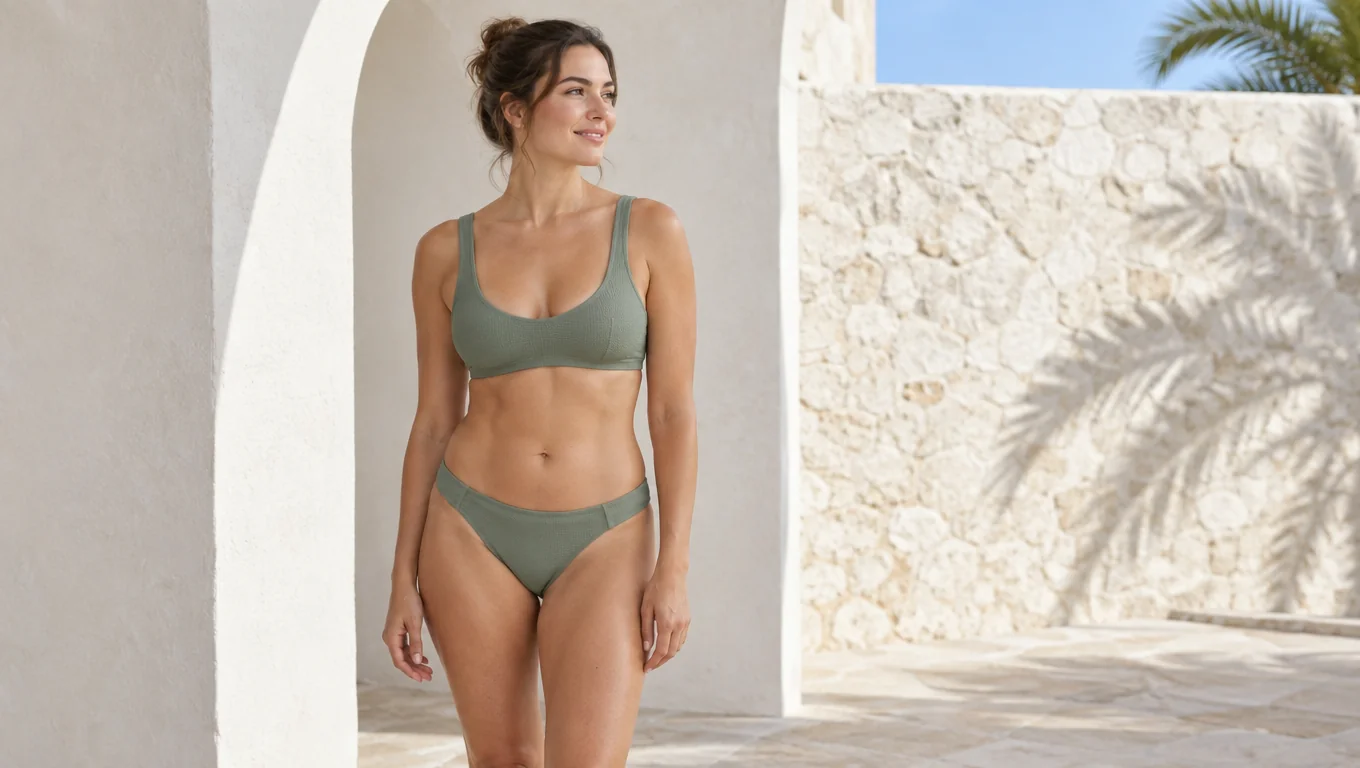
Landscape editorial photograph of a fictional 30-year-old woman in an opaque sage-green bikini with wide sporty straps, standing by a white plaster arch on a sunlit terrace. Her hands are relaxed at her sides and her head is gently turned toward the light, smiling slightly. Place her in the center-left, with head and knees fully within the frame. Use an eye-level 50 mm view and bounced daylight from the courtyard to reveal the woven texture and softly define her cheekbones. Keep the background simple with chalky limestone, a soft palm shadow, and a sliver of sky.
Show ribbed texture in a vertical portrait
Starting material: A written design note for a ribbed two-piece in a warm shade.
Prompt:
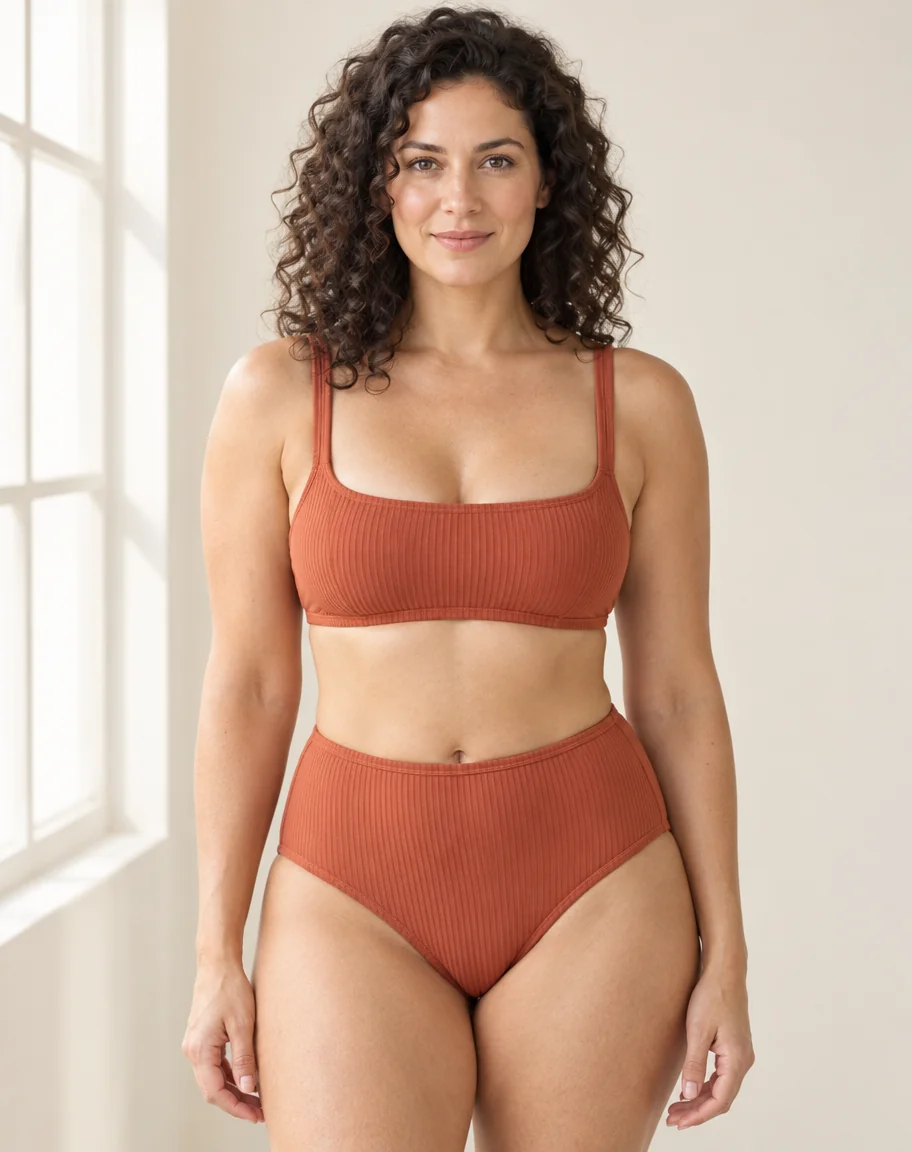
Vertical 4:5 fashion catalog portrait of a fictional 35-year-old woman with curly dark hair wearing a fully lined terracotta ribbed two-piece swimsuit with straight straps and high-rise bottoms. Frame the subject from head to mid-thigh against a clean cream studio background, with an unforced front-facing posture and direct gaze. A broad window to the left gives soft side light that reveals the ribbed fabric and seam lines. Use a 70 mm portrait lens, quiet colors, and realistic skin and fabric texture.
Restyle a flat-lay swimwear photo
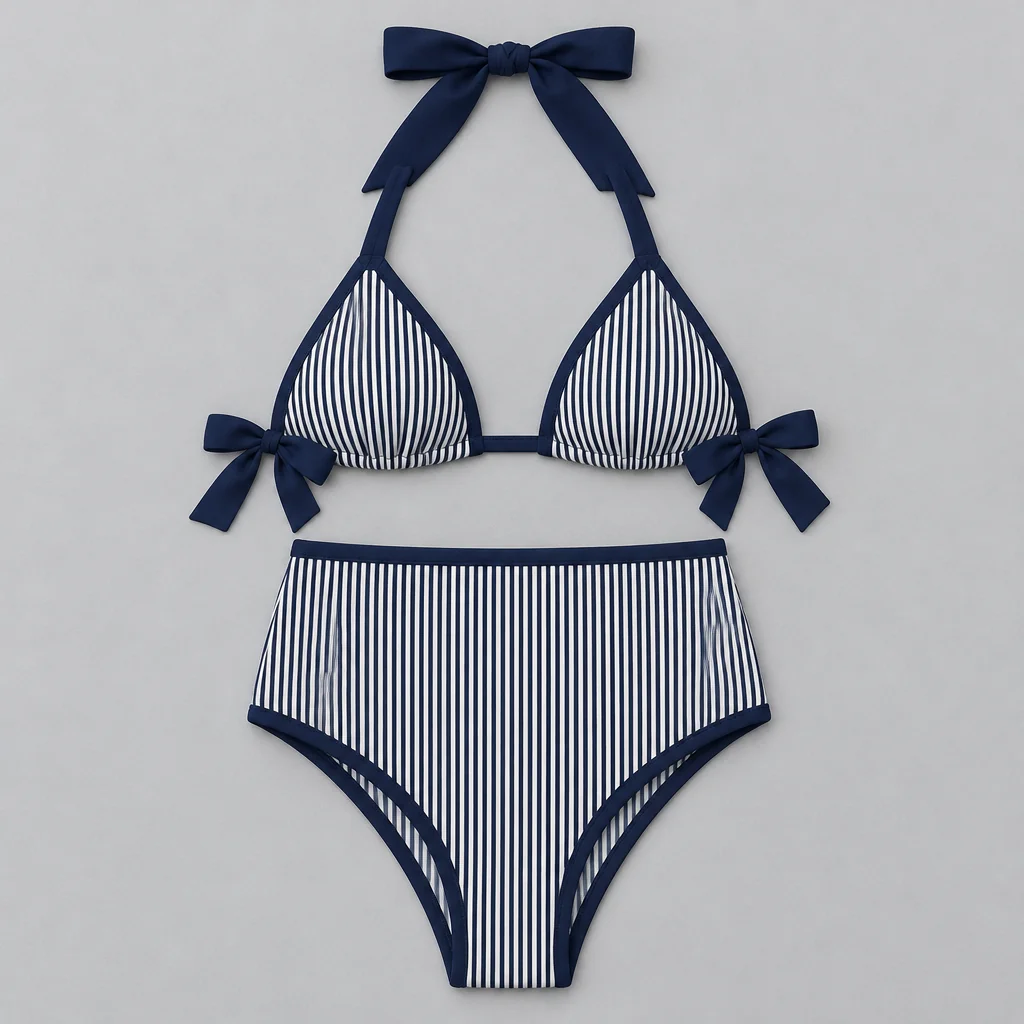
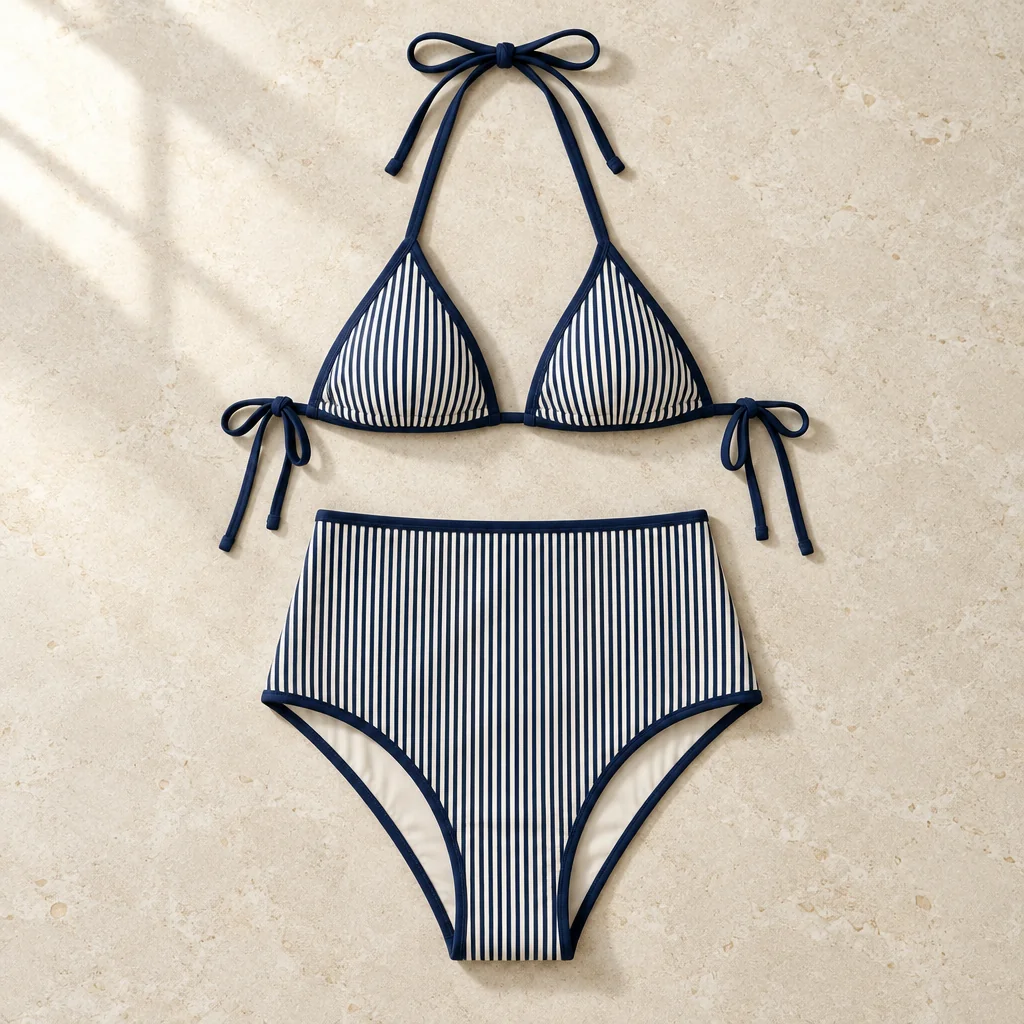
Starting material: A photo of a navy striped bikini laid flat, with both pieces and their ties visible.
Prompt:
Reframe a navy-and-ivory striped bikini product photo as a square overhead flat lay on cream limestone. Center the triangle top with navy bindings above the matching high-waisted bottoms, both fully visible. Keep the narrow stripe spacing, the dark ties, and the straight upper edge of the bottoms visible. Add soft window light from the upper left with a single gentle shadow, leaving a clean margin around the garment. Make the final composition a still life of the garment alone.
Troubleshooting Swimwear Images
The swimsuit details are hard to see
A busy background can compete with fine fabric details. Move the subject into open shade, use a plainer backdrop, or ask for a closer portrait.
The figure is too close to the edge
The subject or pose may occupy more room than the frame allows. Ask for generous margin above the head and beside the arms, or change to a wider aspect ratio.
The lighting looks inconsistent
Conflicting directions can pull the result in different directions. Pick one main source, such as afternoon sunlight from the left, and remove competing lighting instructions.
The garment changed in an edit
The cut or strap design may have been ambiguous in the source photo. Use a clear overhead shot, name the detail you want to keep, and edit from the original again.
The image picker will not accept my photo
Use a supported image file and make sure the file opens on your device. Choose Edit product photo and select a clear still photo of the garment on its own.
AI Bikini Generator Guide FAQ
Which workflow should I start with?
Use Create from text for a new swimsuit photo or Edit product photo to change the setting of a garment image you already have.
What should my first prompt include?
Start with the swimwear cut, the subject, and the location. Add one light direction and one camera position if they matter to the idea.
Which aspect ratio fits a close portrait?
Choose 4:5 when you want more vertical room for the model and less background. Leave space above the head and around the arms.
How much should I change between versions?
Start with one meaningful change, such as moving the light or switching the fabric texture. Save the earlier image so you can compare the effect.
Can I start an edit with a photo of a person?
Use a photo of the garment on its own for Edit product photo. Describe a fictional adult model if you want a new on-body image.
How can I preserve an important strap or trim detail?
Call out the exact detail in your edit request and start with a photo that shows it clearly. Compare the detail in the edited image with the original before using it.
Where does the image go after I download it?
Your browser saves the file to its selected download location or asks where to save it. Keep a copy of the prompt beside the image if you want to revisit the shot.
Where can I compare credit packs?
See AI Bikini Generator pricing to compare the credit packs.
Make Your First Swimwear Image
Pick a cut, a setting, and a camera angle to start your shot.
Open the generator